Browsing "Older Posts"
-
-
Airtel New Plans
By Adhyan Guruji →Airtel Plans - New
(Effective from 26th Nov 2021)
This is Prepaid Plans for Airtel Customers.click here for Vodafone Plans
-
Courses_Contents_ALL
By Adhyan Guruji → Saturday, November 20, 2021# Course Topic Duration View Covered Contents (Topic) 1 Fundamental of Computer 5-7 Days Click Here 2 DOS (Disk Operating System) 5-7 Days Click Here 3 Paint /Note Pad / word Pad 1-2 Days Click Here 4 Ms Word 10-15 Days Click Here 5 Ms Excel 15-20 Days Click Here 6 Ms Power-Point 7-10 Days Click Here 7 Ms Access 5-10 Days Click Here 8 Ms Outlook 3-5 Days Click Here 9 Advance Excel witd MIS 10-15 Days more Click Here 10 VBA 15+ more Days Click Here 11 Tally Prime/Tally ERP9 40-50 Days Click Here 12 Tally TDL Customize Use Only Click Here 13 Busy Accounting 25-30 Days Click Here 14 Marg Accounting 15-20 Days Click Here 15 GST Practical 20-25 Days Click Here 16 Income Tax Practical with ITR 25-30 Days Click Here 17 Balance Sheet Finalization 7-10 Days Click Here 18 TDS /TCS 7-10 Days Click Here 19 Corel Draw 25-30 Days Click Here 20 Photoshop and Effects 25-30 Days Click Here 21 PageMaker 25-30 Days Click Here 22 AutoCAD 45-60 Days Click Here 23 Digital Marketing 45-60 Days Click Here 24 HTML 7-10 Days Click Here 25 DHTML 10-15 Days Click Here 26 CSS 10-15 Days Click Here 27 SQL / MYSQL 10-15 Days Click Here 28 C Language 20-25 Days Click Here 29 C++ Language 20-25 Days Click Here 30 Java Language 20-25 Days Click Here 31 Python Language 20-25 Days Click Here 32 Visual Basic 20-25 Days Click Here 33 Fox Pro 15-20 Days Click Here 34 English Learning 25-30 Days Click Here 35 English Typing 45-60 Days Click Here 36 Hindi Typing 45-60 Days Click Here 37 Internet Course 15-20 Days Click Here -
AutoCAD Introduction
By Adhyan Guruji → Wednesday, October 27, 2021What is Auto Cad?
Auto CAD Software used in following fields for designing Component of
· Mechanical
· Civil
· Electrical
· Architect
· Or PCB (Printed Circuit Board).
It is transformation of Manual drawing to Computerized Designed in 2D and 3D Format. It is Available on Windows, Linux or MacBook.
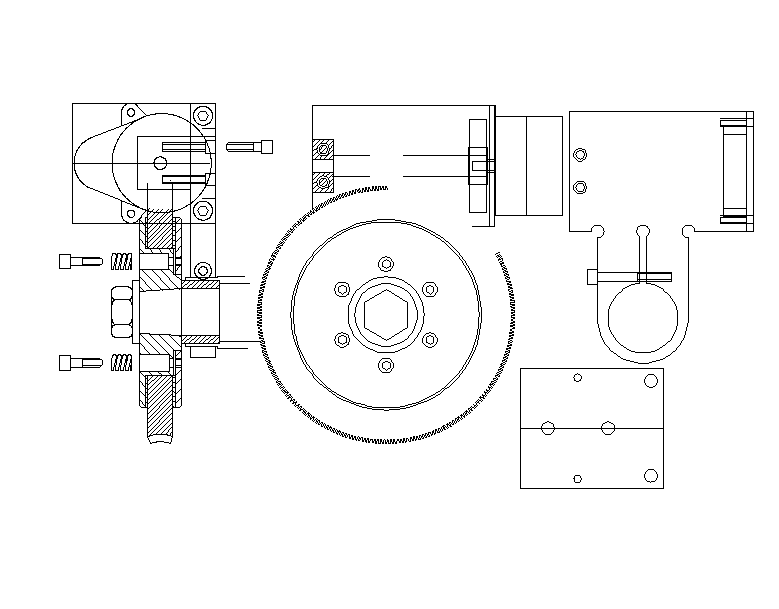
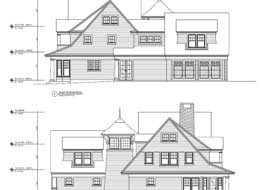
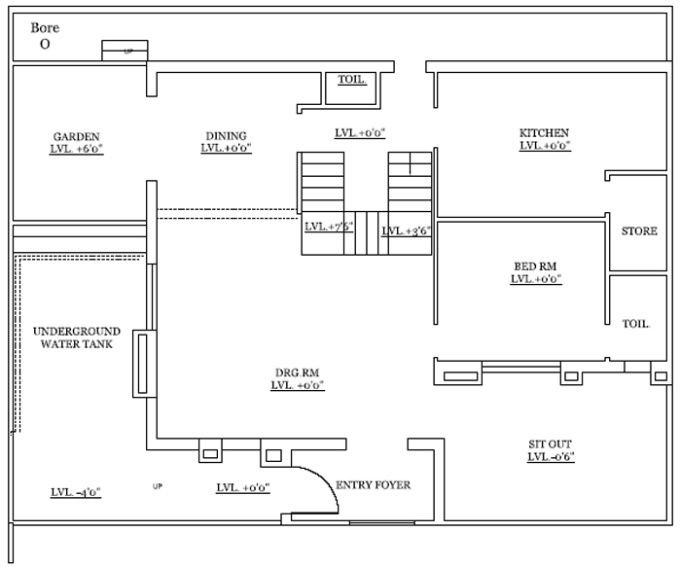
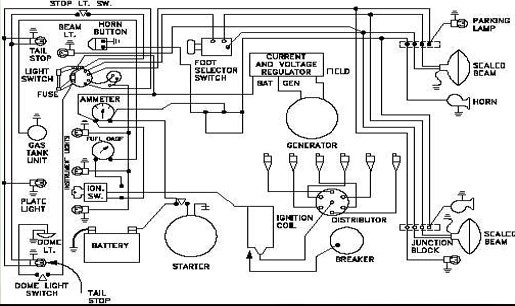
Some Example of Different Field Drafting Layout.
Other important commands
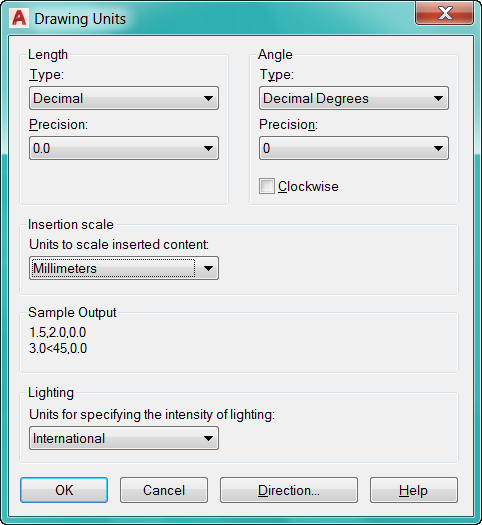
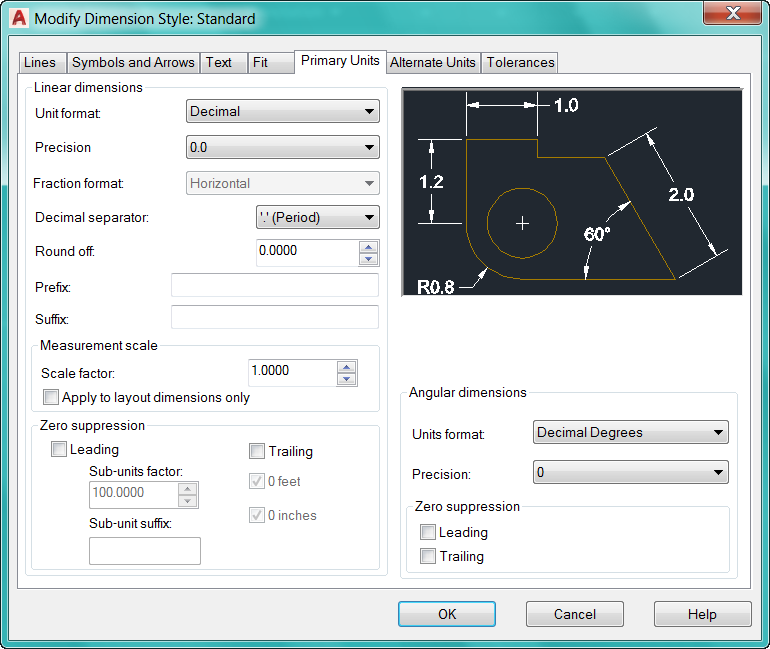
· Un : Drawing Unit (can change as per requirement)
·
· Limit – Set Area to drawing
Starting limit : 0.0
Upper limit : 800,800
Grid display : 2
Note - Only drawing can be done within area
-
Auto_Cad Keys
By Adhyan Guruji → Tuesday, October 19, 2021AUTO CAD – KEY
· Important Functions KeyF1 : Help
F2 : Recent key Used
F3 : Object Snap on / Off
F4 : 3d object snap on/off
F5 : isometric – isoplane on / off
F6 : Toggle 3d Snap to plane mode
F7 : Graph Hide/Show
F8 : Ortho mode on/off (angle line draw only)
F9 : Snap mode on/off (line draw grid base corner to corner)
F10 : Polar Tracking on/off (Add Tracking Setting angles)
F11 : object snap tracking on/off
F12 : Dynamic input mode on/off
Ctrl + P : Print Drawing
Ctrl + Tab : open another drawing tab
Ctrl + W : Close file
Ctrl + A : Select all Drawings
Ctrl + S : Save drawing
Ctrl + O : Open Drawing
Ctrl + Z : Undo Drawing
Ctrl + Y : Repeat Drawing
Ctrl + 0 : Full Screen Drawing / Hide-Show Tab
Ctrl + 1 : Property ON/OFF
Ctrl + 2 : Design Center ON/OFF
Ctrl + 3 : Tool Palette Window ON/OFF
Ctrl + 4 : Sheet Manager ON/OFF
Ctrl + 7 : Markup Manager ON/OFF
Ctrl + 9 : Command Line box (Hide-Show)
Ctrl + 8 : Calculator
Command Line (Keys)
L : Line
XL : Infinite length Line
PL : Polyline
POL : Polygon
P : Pan in Drawing
REC : Rectangle
TB : Table
V : View Manager
Z : Zoom in (Display ALL)
MOCORO : Move / Copy / Rotate /Scale Object
RAY : Construction line in one Direction
SPL : Spline or smooth Curve
T : Multi line Text
ED : Edit Text
O : Offset and object by distance
ML : Multiline
MI : Mirror an object
ME : Measure Input distance and inserted points
M : Move an Object
C : Draw Circle
BR : Break a line by Define two points
EL : Ellipse Draw
E : Erase a Selection
BOX : Draw Box
BO : Boundary creation
3D : Command line solid 3D points
A : Draw Arc with 3 points
-
How to Open Command Prompt and Exit from Directory
By Adhyan Guruji → Sunday, February 7, 2021
Command Prompt Tutorial
1.How to open Command Prompt in Computer?
Solution.Press window key + R and Type CMD to open Command Promot.

After Type CMD - Click on OK Button. Below Screen will Visible.

After Open Type CD.. for Exit one folder same command use again for exit another folder in Command Prompt.

You can watch Related Videos about DOS (Command Prompt)
-
By Manoj → Monday, December 28, 2020GST TAX CALCULATION METHOD
Tally PRIME

GST - Feature - Wise Tax
Create New Company - Accept Company Details - Activate GST - Yes
· Select the Firm Registration Type (Regular)
 · Select the GSTR1 Return filing - if more than 1.5 Crores. (select monthly return) otherwise below 1.5 Crores select (Quarterly return)
 · GST Feature wise tax - set below option –Yes
 · After set - Yes (fill following details) - e.g. Description - HSN/SAC code and Tax Rate.
Ledger Creation
Masters - Create
1. Local Purchase @ 18% and Inter-State Purchase @ 18%
Under - Purchase A/c
2. Local Sales @ 18% and Inter-state Sales @ 18%
Under - Sales A/c
3. CGST (Input / Output) with 9%


4. SGST (Input / Output) with 9%


5. IGST

 6. LOCAL Creditor (Jankidas)
 7. INTER -STATE Creditor (Vikas)
 8. Local Debtor
9. INTER-STATE Debtor

Create All Ledger with Correct Group and Back to Gateway of Tally

· Masters - Create - Units
· Masters - Create - Stock Group
· · Create - Stock Item
1. Usha fan

2. Bajaj Fan

After create Inventory Details back to Gateway of Tally
Gateway of Tally - Voucher
(Press f9) Purchase
1. Local Purchase
Purchase 40 PCS USHA FAN from Jankidas @ Rs .300 Each. GST Applicable @ 18%
(CGST 9% / SGST 9%) on 1st Apr (Supplier invoice number – 123)

2. Inter-State Purchase
Purchase 30 PCS Bajaj FAN from Vikas @ Rs .500 Each. GST Applicable @ 18%
(IGST 18%) – Supplier invoice number – 453- Purchase on 1st Apr
(I

After Complete Purchase Check GSTR2 Summary, here we can found our total ITC (input Tax credit).
Gateway of Tally à Display - GST Report - GSTR-2Now our Reaming ITC Amount show 2,806 Rs. show on balance Sheet in Current Liabilities Section (If Minus Sign Show (-) then It means our ITC Available otherwise if Minus sign not show , It means we have to pay that tax to the government that is our liability) B2B - Means Company purchase goods from registered dealer (Local / Inter-state)Press Enter for more details on B2B invoices, and following entries shows
 After Check Report, if we sales Product to Party - B2B (Regular Dealer)Gateway of Tally à Voucher - Press F8
1. Sold 10 PCS. USHA FAN to Mr. Harish. @ 450 Rs. - Discount 2% (GST 18%)
Note:-
Open - Use Discount column in Invoices from F11 .

2. Sold 10 PCS BAJAJ FANS to Mr. Maneet Sharma @ Rs 700. (GST Applicable) 18% and Freight charges Rs 450.Note - Create Ledger Freight charges - Under - (Indirect Expenses)

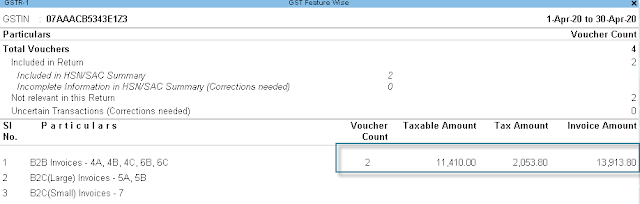
Our ITC is more than for Sales Tax Amount - So in the month of April our Tax Liability is 0 (Zero) Rupees.
For full Report while Upload GSTR on Web Portal - Check GSTR-3B - this is Upload on Web Portal for Filing Return.
· Check balance Sheet for Duties & Taxes
We can also check Outstanding Payable and Outstanding Receivable Amount from Party-
Display - Statement of Accounts - Outstanding - (Payable/ Receivable)Note- (while creating Part Ledger - Set Bill by Bill option - 'Yes') otherwise report not show (Press Alt+F1 for show All Entry in Details_


GST-Feature Tax (Practical Question)Q-Calculate total GST Payable by the XYZ firm for following transaction
à GST (Feature wise) - 28%
Purchase from Mr. Ajay , Local (Delhi) GST No - 07AADCB2230M1ZV
· · 20 PCS DELL LED, 22 Inch @Rs. 9500 each on 1st May
· · 10 PCS HP LED, 21.5 Inch @ Rs 9200 each on 2nd May
(Discount - 5% on Above Item)
Purchase from Mr. Sunil , Inter-State (Kerala) GST No - 32AAACC4175D1Z7
· · 10 PCS HCL Laptop, i3 @ Rs 19500 each on 1st May
· 15 PCS Lenovo Laptop, i7 @ Rs 24500 each on 2nd May
(Note- Discount - 7.5% on HCL Brand)
Total GSTR2 - 2,28,417.00 Rs

Note - If Tax not show , change the period according to transaction.
Sold to Mr. Chetan , Inter-State (Bihar) GST No - 10AABCS1429B1Z9 on 1st June
· 12 PCS DELL LED, 22 Inch @Rs. 10200 each· 7 PCS HP LED, 21.5 Inch @ Rs 9800 each· 12 PCS Lenovo Laptop, i7 @ Rs 26500 eachSold to Mr. Prakash , Inter-State (Rajasthan) GST No - 08AAACH2702H1Z0 on 2nd June· 7 PCS DELL LED, 22 Inch @Rs. 10300 each· · 3 PCS HP LED, 21.5 Inch @ Rs 9900 each
· 10 PCS HCL Laptop, i7 @ Rs 21000 each (Discount - 5%)Total GSTR1 - 2,26,884 Rs
Total GST Payable - No GST Payable because GSTR1 is More than GSTR2
· Show balance sheet for check

Note - if Duties and taxes show in negative , it means output tax is lower and Input tax is higher. if Output tax is higher we have to pay (FILL GSTR) the amount show in duties and taxes section.
·